Create and manage leases
Under Contratti di locazione you find the archive of all lease documents: generated and uploaded. Open the page in the sidebar under Gestione → Contratti di locazione. Here you check the status of a contract, download the PDF, activate drafts and start new contracts. Tenants and lease files are separate: the terms of the tenancy (rent, term) are kept on the tenant, the contract document here.
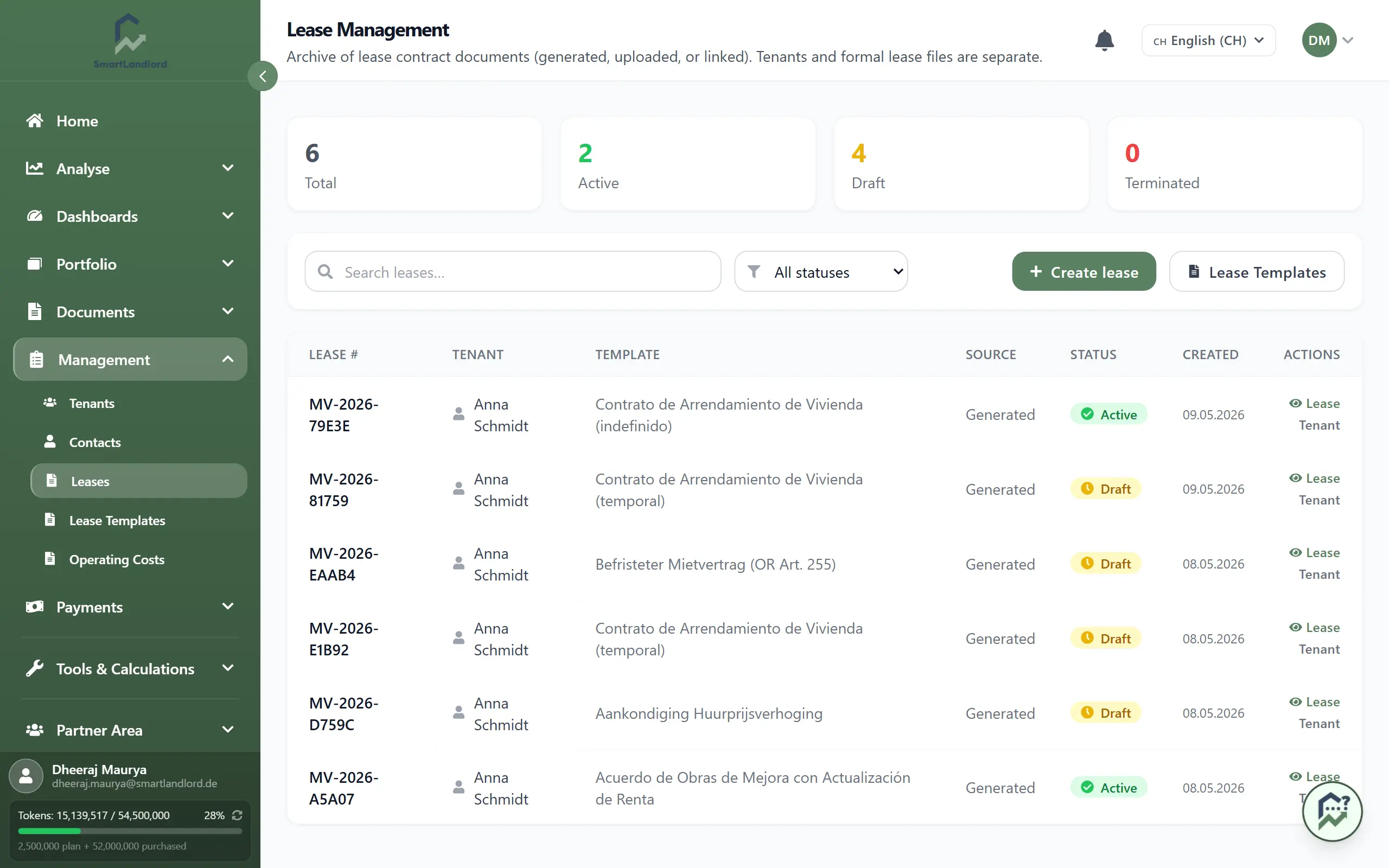
The list
Four tiles count your leases: Totale, Attivo, Bozza and Terminato. The table shows for each lease the number, tenant (click to open the tenant), template, source (Generato or Caricato), status, creation date and, if a PDF exists, a download button.
- The search field finds leases by number or tenant.
- The status filter offers Bozza, Attivo, Terminato and Scaduto. The Status column can also show Firma in attesa.
- Clicking a row expands its details directly below.
Create a new lease
- Click Creare un contratto di locazione.
- In the window, choose the tenant the lease is for. If the tenant does not exist yet, click Aggiungi inquilino; you then create property and tenant in the editor.
- The lease editor opens: the form on the left, the preview of the contract on the right, updating as you type.
Alternatively, start from the tenant's page with Genera da modello.
The editor from top to bottom:
- Magic Fill: describe the lease in one sentence, or upload a contract or brochure (Carica contratto/annuncio); with Compila the AI prefills the form.
- Immobile and Inquilino: choose existing entries or create new ones in a short step-by-step window. If the lease is for an existing tenant or you are editing a draft, both are fixed.
- Condizioni del contratto: Inizio del contratto, Fine del contratto, cold rent, utilities and deposit. The end date depends on the template: for some templates it is required, for others it is disabled (hint at the field). When a cold rent is entered and the deposit is empty, the form offers a button that fills in three cold rents.
- Modello: the default is "Automatico (in base al tipo di immobile)". You can pick a template explicitly.
- Dati aggiuntivi: optional details such as keys, cellar room, furniture surcharge or graduated rent. Anything you leave blank stays in the contract as a line to fill in by hand.
- Assistente IA: changes by sentence, for example "a tempo determinato 2 anni" or "aggiungi clausola animali".
In the preview the clauses are numbered consecutively. On each clause you can choose Perfeziona con l'IA or Modifica; changed clauses are marked "modificato" and can be reset. Clauses added by the AI carry the mark "KI" and can be deleted.
At the bottom the page shows either Pronto da creare or what is still missing (property, tenant, lease start, cold rent, the end date if needed). If the tenant's contact has no address, the button Completa l'indirizzo dell'inquilino takes you straight to adding it. Then click Crea contratto.
Afterwards Contratto creato appears at the top with the actions Attiva, Scaricare PDF (once the PDF is ready), Invia al locatario (only when the PDF is ready and the contact has an email address; opens your email program with the PDF link) and Apri inquilino. The lease starts as a Bozza.
Check property, tenant, dates, rent and deposit before creating. For a new tenant, the editor also creates the tenancy; for an existing tenant, lease start, lease end, rent, utilities and deposit from the editor are saved to the tenant.
Open and edit a lease
Click the row in the list. The detail view offers:
- Anteprima – any time, drafts included.
- Scaricare PDF – only after activation.
- If the PDF has not been generated yet or generation failed, a Riprova PDF button.
- For a draft: Modifica (opens the editor with the saved state and a Salva button), Attiva and Elimina.
You see the same rows with preview, download and activate on the tenant's page in the card Contratto di locazione (documento).
Activating is final. The lease becomes the binding document and can no longer be edited. Deleting a draft cannot be undone.
Upload your own PDF
If you already have a signed contract, you do not need the editor: open the tenant and click Carica PDF in the card Contratto di locazione (documento). The file appears in the tenant's tab Documenti.
Templates
Lease templates are an administrator function: the button Modelli Contratto on this page and the sidebar entry Modelli di contratto only appear for SmartLandlord staff. As an owner you choose one of the provided templates in the editor or let the automatic selection decide.