Manage contacts
Under Contatti you keep all the people and organisations connected to your properties: tenants, tradespeople and other contractors, banks, authorities. Open the page in the sidebar under Gestione → Contatti. Every tenant is created from a contact, so it pays to keep this list clean.
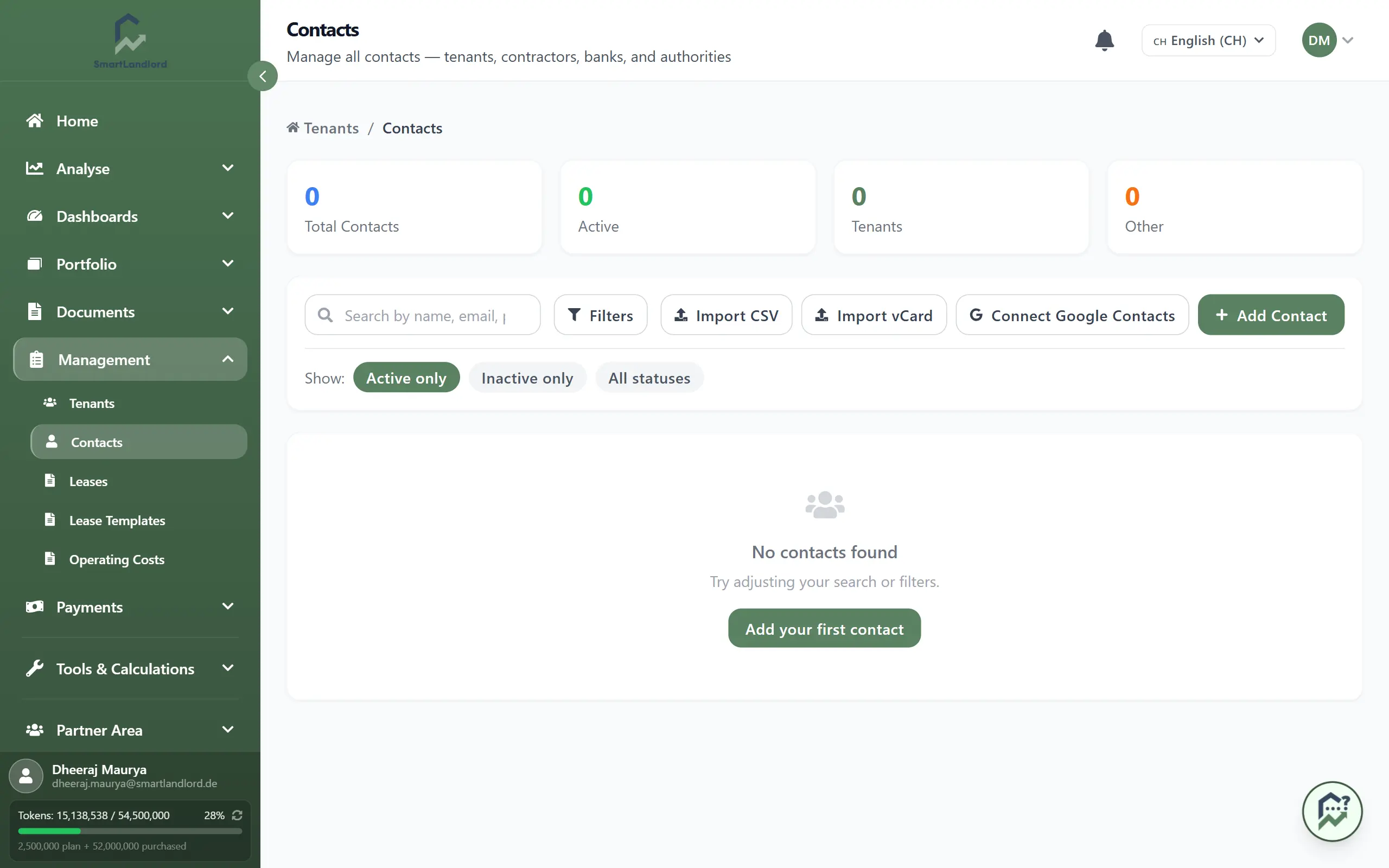
The list
Four tiles at the top show total contacts, active ones, tenants and others. Below is the table with name, type, email, phone, city and status.
- Search by name, email or phone number.
- Mostra: Solo attivo (default), Solo inattivo or Tutti gli stati.
- Type: the Filtri button shows the type filters: Inquilini, Appaltatori, Banche, Autorità and Altro.
- Clicking a row opens the detail view on the right. It shows basic data, contact details, the rented properties, address, bank details and additional information, and offers Modifica and Elimina. The same actions are available as icons at the end of each row.
Add a contact
Click Aggiungi Contatto. The form opens on the right.
- Informazioni di Base: Tipo di Contatto, Titolo, Nome and Cognome (both required), Nome Azienda and the switch Contatto attivo. If you choose "Altro" as the type, a field for a closer description appears.
- Dettagli Contatto: Email, Telefono and Cellulare. An email address is checked for its format.
- Indirizzo: street, postal code, city and Paese (required).
- Dettagli Bancari (collapsed): IBAN, BIC, account holder and bank name. The fields adapt to the country.
- Informazioni Aggiuntive (collapsed): Codice Fiscale / P.IVA (only relevant for service providers) and Note.
When you add a tenant you do not have to create the contact here first: the tenant form has the button Creare un nuovo contatto, which embeds a form for creating the contact.
Store an email address for tenants. Without one, no messages can be sent to the tenant through SmartLandlord.
Import contacts
To bring in many contacts at once there are three ways, all in the bar above the table:
- Importa CSV – a CSV file (UTF-8). First row: column headers, then one row per contact. Recognised are name (or first and last name), type (tenant, contractor, bank, authority, other), email, phone, city and status (active or inactive), in any order.
- Importazione di vCard – a .vcf file, for example from your phone's address book.
- Collega Google Contatti – sends you to Google. After signing in you return and the contacts are loaded.
Before saving, the app shows a preview (Verifica importazione); contacts are only created once you confirm. If rows match existing contacts by email or phone number, the app asks whether to skip the duplicates (Saltare i duplicati) or import everything anyway (Importare comunque tutti). The number of rows per import is limited; split a file that is too large.
Deleting
- Deleting sets a contact to inactive; it is not removed from the database. Find inactive contacts with Solo inattivo or Tutti gli stati. To use a contact again, open it for editing and switch Contatto attivo back on.
- Several contacts: tick rows (or all on the page) and click Elimina selezionati. This applies to the current page.
- Contacts assigned to a tenant cannot be deleted. They show a lock icon and are excluded from multi-select.
The confirmation dialog when deleting from the list says "cannot be undone". In fact the contact is only deactivated and can be reactivated (see above).