Scenarios: play through assumptions and compare them
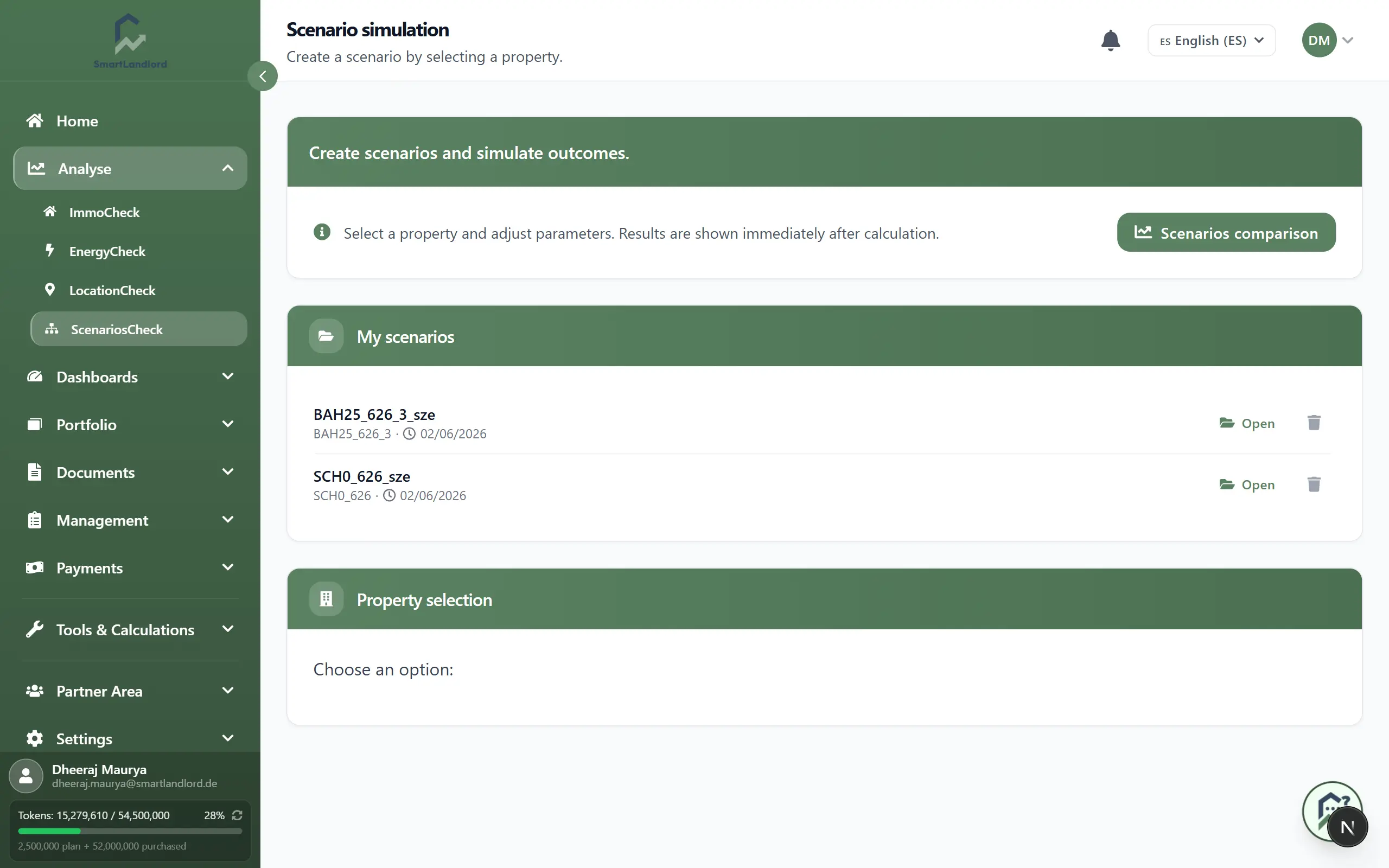
With ScenariosCheck (Analisi → ScenariosCheck, or the Scenario button in Il mio inventario) you play through what happens to one of your properties when financing, rent, costs or value development change. The "Simulazione scenario" page recalculates live with every input. A saved scenario has its own values; the property's own data stays unchanged.
1. Choose a property
In the "Selezione proprietà" section, click the card of the property you want to run. Only then do the form, the live results and the side panel with the property's data appear. Further up, "I miei scenari" lists your saved scenarios.
The form is pre-filled with the property's values. A "dalla proprietà" marker next to a field shows that the value comes from the property. If you change it, the marker reads "modificato", and Ripristina valore dell'immobile brings the original value back. The "Dettagli sulla proprietà" side panel shows the property's real data (financials, tenants, units, last operating cost statement); Usa copies a value into the form.
2. Change the assumptions
- Enter a Nome scenario (required) and set the Periodo simulazione (anni).
- Section "Finanziamento": purchase price, equity, interest, repayment, loan type and term. Loan amount and monthly debt service are calculated automatically.
- Section "Affitto e costi": Affitto a freddo, parking rent, house fee, allocable and non-allocable costs, property tax, Riserva di manutenzione al mese and Tasso di rischio di sfitto. Amounts are per month; Tasso di rischio di sfitto is instead a percentage of the annual cold rent.
- Section "Crescita": Aumento dell'affitto all'anno and Aumento di valore all'anno, each in percent per year.
- Section "Tasse / ammortamento": depreciation type and rate, special depreciation, tax rate, land share and purchase date.
To the right of the form (below it on narrow screens), "Risultati in tempo reale" shows at once: Cashflow pre-imposte, Cashflow post-imposte, Rendimento lordo, Moltiplicatore del canone, Rendimento del capitale proprio and Accumulazione di patrimonio. Charts follow below: Proiezione del flusso di cassa, Evoluzione del patrimonio, Sviluppo del servizio del debito, Curva di ammortamento AFA and Ricavi di uscita alla vendita. The "Riepilogo rapido" sums up total financing, monthly income and costs and the net cash flow.
Your entries are kept as a draft per property in the browser ("Bozza ripristinata"). Reimposta starts over.
3. Save
Click Salva scenario. If fields are marked red, correct them first; only then is the scenario saved. After saving, Vedi nel confronto offers the comparison and Crea un altro scenario a new scenario.
Saved scenarios are listed under "I miei scenari". Apri loads a scenario into the form. There the main button reads Aggiorna scenario; Salva come nuovo creates a copy instead. The trash icon deletes a scenario after the question "Eliminare questo scenario?".
4. Compare scenarios
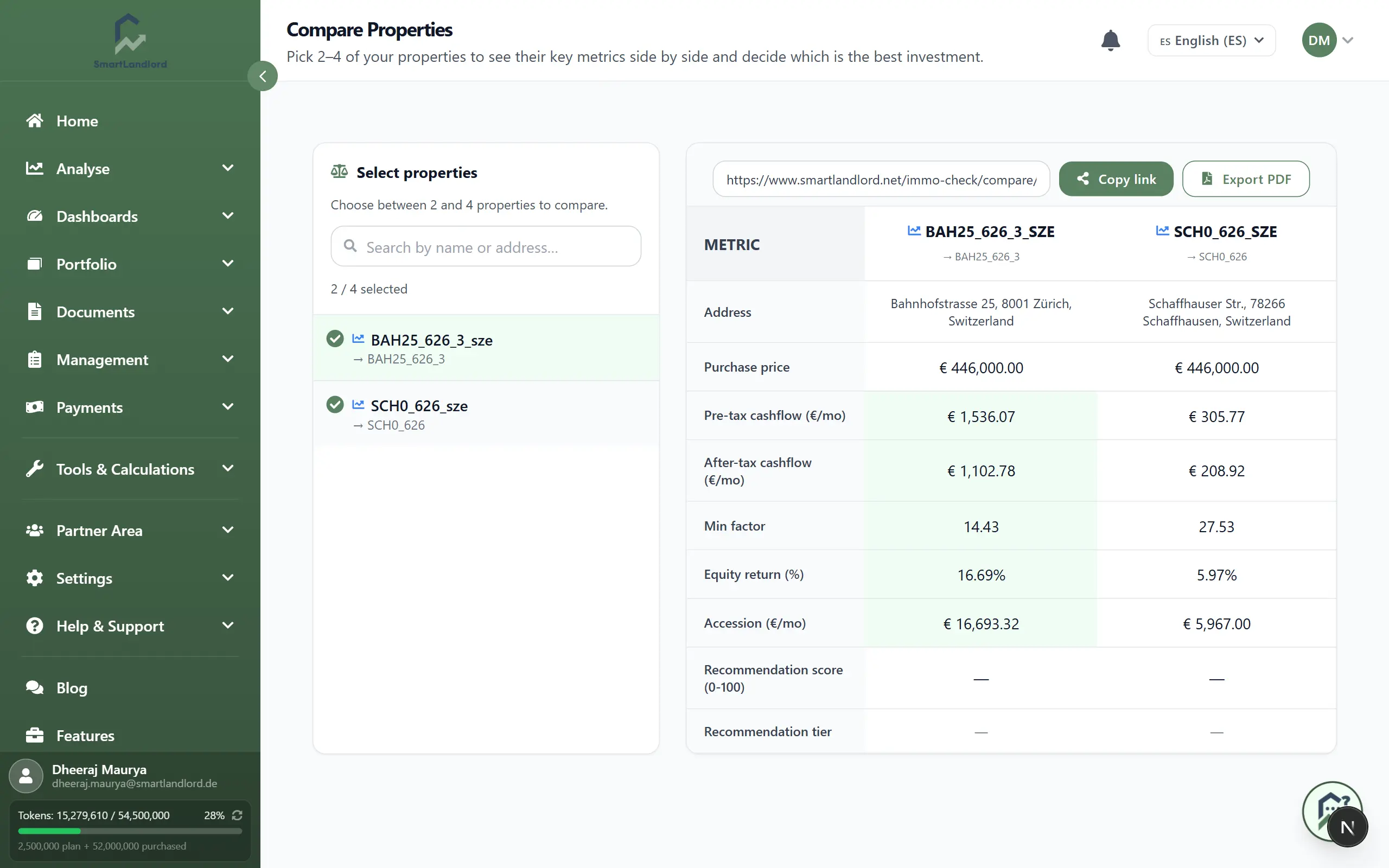
The Confronto scenari button at the top of the page opens "Confronta immobili". There you pick entries from your properties and scenarios (hint on the page: "Scegli tra 2 e 4 immobili da confrontare."); they are shown side by side with their key figures, such as cash flow before and after tax, return on equity and purchase price. You can share the comparison through a link (Copia link) or export it as a PDF (Esporta PDF).
A scenario is only as good as its assumptions. When comparing, change only a few values at a time, otherwise you cannot see what moves the result.