LocationCheck: assess location quality
The LocationCheck (Analisi → LocationCheck) rates an address using socio-economic data (income, employment, population development) and infrastructure (transport, education, shopping, doctors). You get scores from 0 to 100, a criteria table, an AI location analysis and a map. You do not need a property in your inventory.
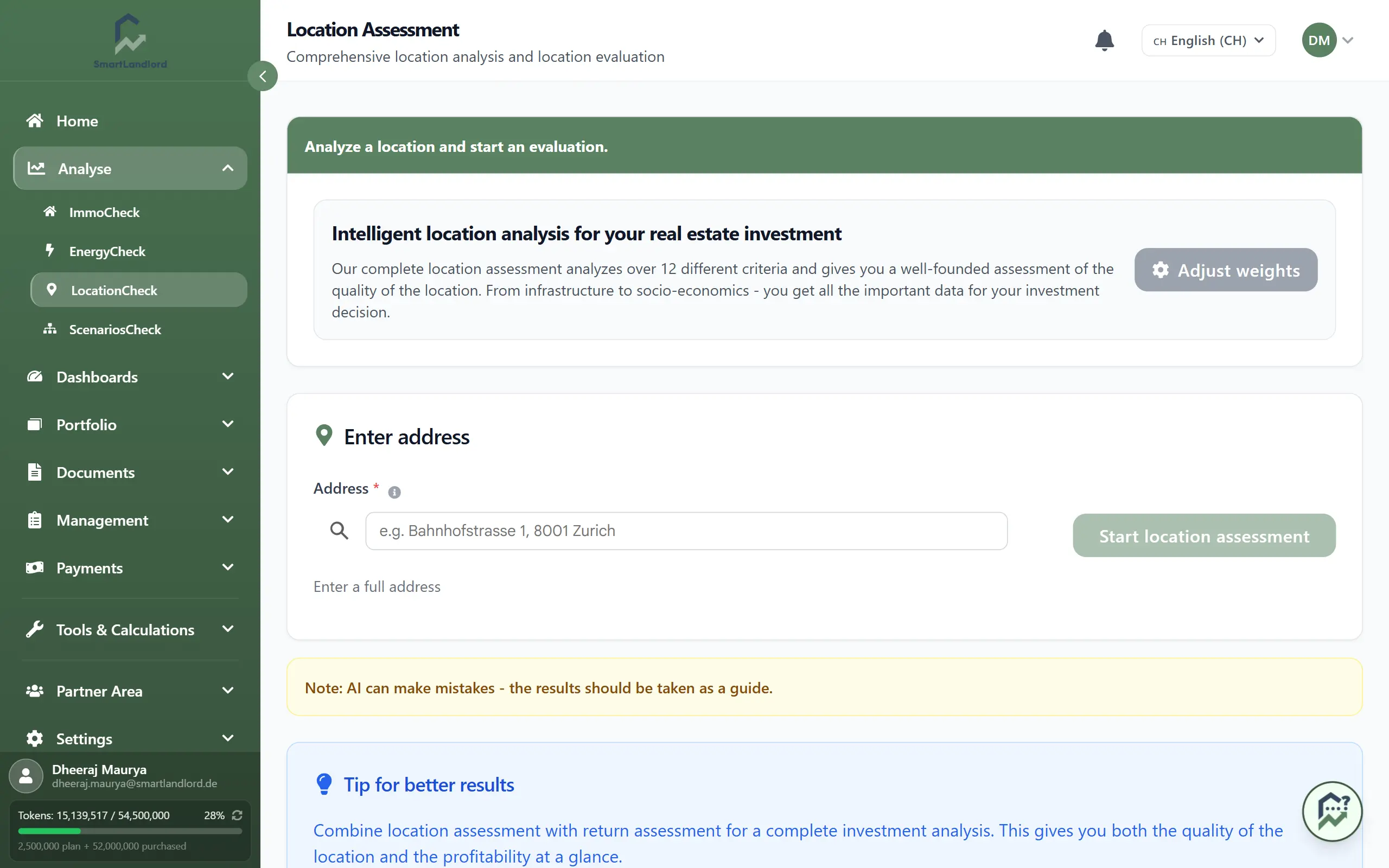
1. Assess a location
- Type the address into Indirizzo and pick it from the suggestions. Only a selected address can be assessed; otherwise "Indirizzo non trovato. Controlla l'indirizzo e riprova." appears.
- Include the postcode in the address (example: "Es. Via Roma 1, 00100 Roma"). If SmartLandlord recognises the postcode, "Codice postale rilevato" appears below; if it is missing, a yellow notice appears.
- Click Avvia valutazione della posizione.
Without a postcode, no socio-economic data is available. The assessment then relies on infrastructure and supply only.
2. Read the result
- Three cards: Punteggio socio-economico, Punteggio dell'infrastruttura and Valutazione complessiva, each from 0 to 100. The overall rating is the weighted combination of the other two.
- Dati analizzati: Tipo di ubicazione (big city, city or rural), postcode, and whether socio-economic and infrastructure data were fully evaluated.
- A table with criterio, Valore, Punteggio (0-10) and Ponderazione for each criterion. The info icon next to a criterion opens details about it.
- Analisi della posizione con IA: a written assessment of the location.
- Mappa della posizione: the location on a map.
Two locations can have similar overall scores and still have different strengths. Read the individual values, not only the overall rating.
Creare un rapporto PDF below the result saves the assessment as a PDF. The A Immocheck button at the very bottom leads to ImmoCheck so you can look at the location assessment together with the yield analysis.
Nota: l'intelligenza artificiale può commettere errori; i risultati devono essere considerati come una guida. Check important points yourself (for example school catchment areas or planned construction) and visit the place in person for larger decisions.
3. Adjust the weighting
With Regolare i pesi at the top of the page (or Impostazioni → Impostazioni posizione) you decide how strongly each criterion counts.
- Switch on Utilizzare le proprie impostazioni. While the switch is off, the default values apply.
- Under Criteri socioeconomici, give each criterion a weighting in percent (for example unemployment rate, crime rate, average income). The "Totale" display must not exceed 100%; at exactly 100% it turns green.
- Under Criteri infrastrutturali, first choose the location type: Grande città, Città or Rurale. For each criterion set Ponderazione (%), Raggio di ricerca (m) and Divisore di valutazione; for "Vicinanza alle grandi città" there is only the weighting. The weightings of each location type must also not exceed 100%.
- Click Salva le impostazioni. Ripristino delle impostazioni predefinite restores the defaults.
If you change the settings after an assessment, the saved assessment points this out ("Le impostazioni di valutazione sono cambiate dopo questo calcolo. I punteggi seguenti potrebbero non essere aggiornati."). Ricalcola ora recalculates it.
4. Earlier assessments
Under Dashboard → Dashboard posizione you find all assessments with key figures (count, average, best and worst location), a table and charts. Nuova valutazione starts a new assessment. The eye icon (tooltip "Visualizza") reopens an assessment; there you can create a PDF or recalculate it.