Import, review and assign transactions
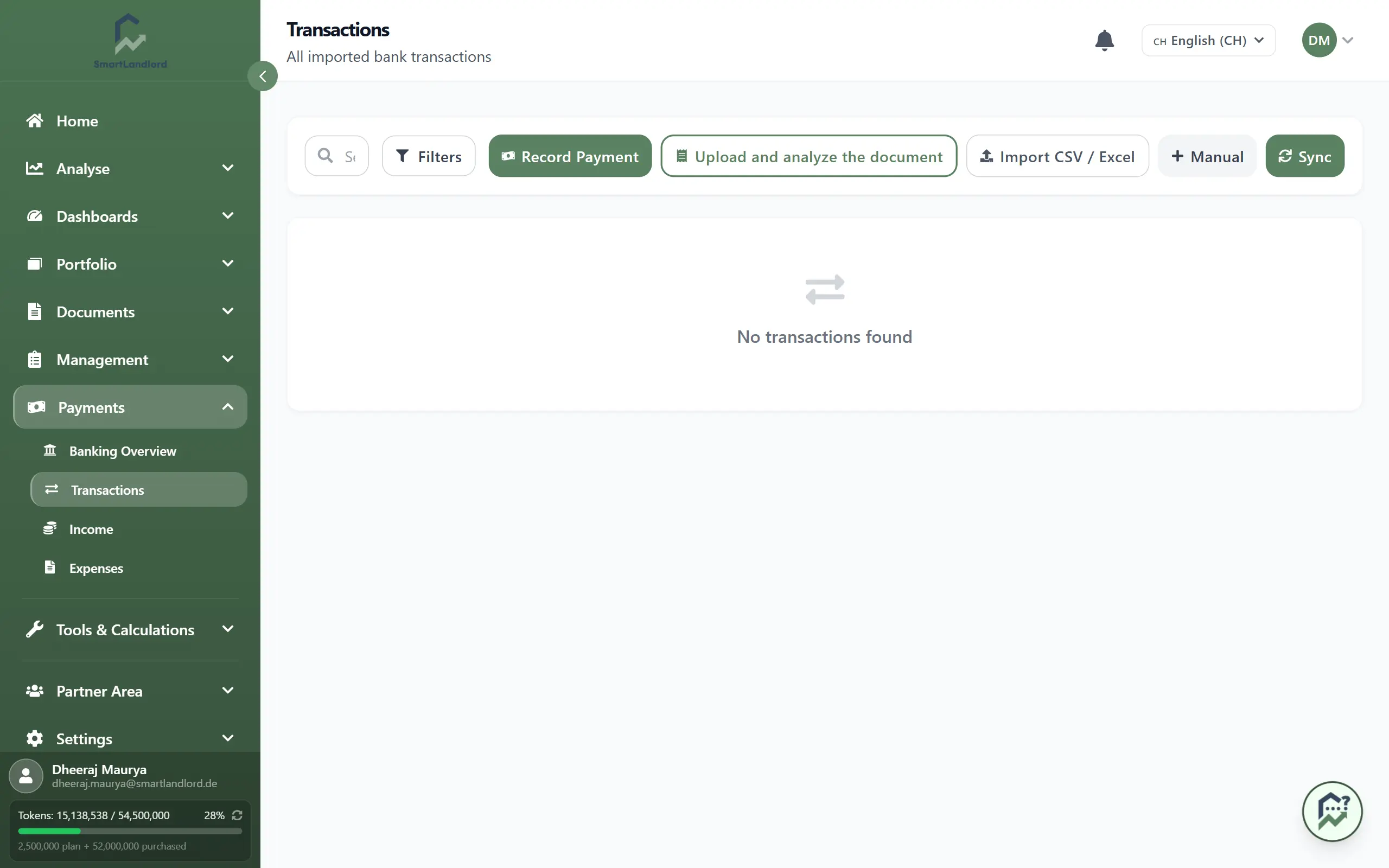
The Transazioni tab under Pagamenti → Banca lists all bank transactions. Each one has a status; the goal is that every transaction is assigned to a property (and, for rent received, a tenant). Assigned transactions are linked to an income record (Entrate) or an expense record (Uscite).
Getting transactions in
- Import a statement: Importa estratto conto (CSV/Excel) in the header of the Banking page (see below).
- Scan a receipt: Scansiona ricevuta in the toolbar of the tab. Upload an invoice or receipt (PDF, PNG, JPG); SmartLandlord reads the amount, date, counterparty and category. In the window you check the values and choose Registra come spesa or Registra come pagamento, depending on what was detected. Inserimento manuale creates a bank transaction instead; this requires an account (see the guide on the Banking overview).
- Record an income or expense directly: Aggiungi transazione. The side panel has the tabs Entrata and Spesa and creates an income or expense record straight away, without going through allocation.
- Automatic bank retrieval: only when the bank connection is enabled; see the guide on the Banking overview.
CSV, Excel or PDF import
Importa estratto conto (CSV/Excel) opens a page with three steps:
- Caricare il file: drop or choose a file. CSV, XLSX, XLS and PDF up to 10 MB are accepted. For Excel the first sheet is read; for PDF the transactions are extracted from the statement. The first row must contain the column headings. Then Avanti.
- Mappatura colonne: match the columns of your file to the fields Date, Amount, Counterpart Name, Counterpart IBAN and Purpose. Common German and English column names (e.g. Buchungstag, Betrag, Verwendungszweck) are detected automatically. Date and Amount are required; the others can be left out with - Saltare -. A preview shows the first 20 rows. Then Importazione.
- Risultato: the numbers Importato, Duplicati saltati and Errori, with details for errors. Visualizza le transazioni takes you to the list, Importare un altro file to the next file.
Duplicate transactions are reported by the import as skipped; the numbers are in the result.
The list
Columns: date, amount (income green with +, outgoing red with −), counterparty with IBAN, purpose, status and actions. For assigned transactions, the links Vedi entrata and Vedi spesa lead straight to the income or expense record.
Narrowing down:
- The search box searches the transactions.
- Filtri opens the filters: Da, A, Immobile, Stato and Tipo (Reddito or Spese). Cancella tutto resets everything.
- Below the list you page through the results and set how many entries are shown per page.
Status
| Status | Meaning |
|---|---|
| In attesa | Not assigned yet. Action: Assegnare. |
| Suggerito | A rule or the AI made a suggestion (shown in the row). Actions: Conferma corrispondenza or Rifiuta. |
| Assegnato | Assigned to a property. Actions: Modifica dell'allocazione or Annulla. |
| Ignorato | Deliberately skipped; does not count as income or expense. |
Rifiuta and Annulla set the transaction to Ignorato, not back to pending. If you want to assign it later after all, choose Modifica dell'allocazione on the ignored transaction.
Assigning a transaction
- Click Assegnare in the row (for suggestions, the details icon).
- Choose the Proprietà. You can set the Inquilino (optional) for incoming and outgoing money; incoming money also has the Tipo di pagamento, outgoing money the category. A note is optional. An existing AI suggestion is shown at the top of the window.
- Confermare l'assegnazione. With Ignorare you mark the transaction as ignored instead.
Several transactions at once
Tick rows. A bar appears with Ignora (with a confirmation), Assegna selezione (opens the allocation page; the chosen transactions are not carried over there) and Deseleziona tutto. The selection is cleared when you change page.
Allocation tab and rules
The Assegnazione tab works through the open transactions.
- At the top are the counters In attesa and Suggerito.
- Under Eseguire l'automazione you start Eseguire il motore delle regole (applies your rules) and Eseguire i suggerimenti dell'IA. If the AI reports that it is not set up, only the rules apply.
- Below, you switch between the list of suggestions and the list of pending transactions. Per row for suggestions: Conferma corrispondenza or Ignorare; for pending transactions: Assegnare or Ignorare. Pick several rows with Seleziona tutti or one by one.
Rules
With Gestione delle regole (or the switch Regole di Allocazione) you create rules that assign recurring transactions on their own, for example one tenant's rent.
- Choose Nuova regola.
- Enter Nome della regola and Priorità. Rules are evaluated by priority, highest first; the first matching rule decides.
- Set conditions, at least one: Il nome della controparte contiene, IBAN (esatto), Lo scopo contiene or an amount range (Importo minimo (€), Importo massimo (€)).
- Choose an Azione: Assegnare all'inquilino, Assegnazione alla proprietà or Ignorare, and set the tenant or property.
- Crea regola.
Rules can be disabled, edited and deleted.