Recording and categorising expenses
Under Pagamenti → Uscite you record what your properties cost and decide which costs go into the operating cost statement.
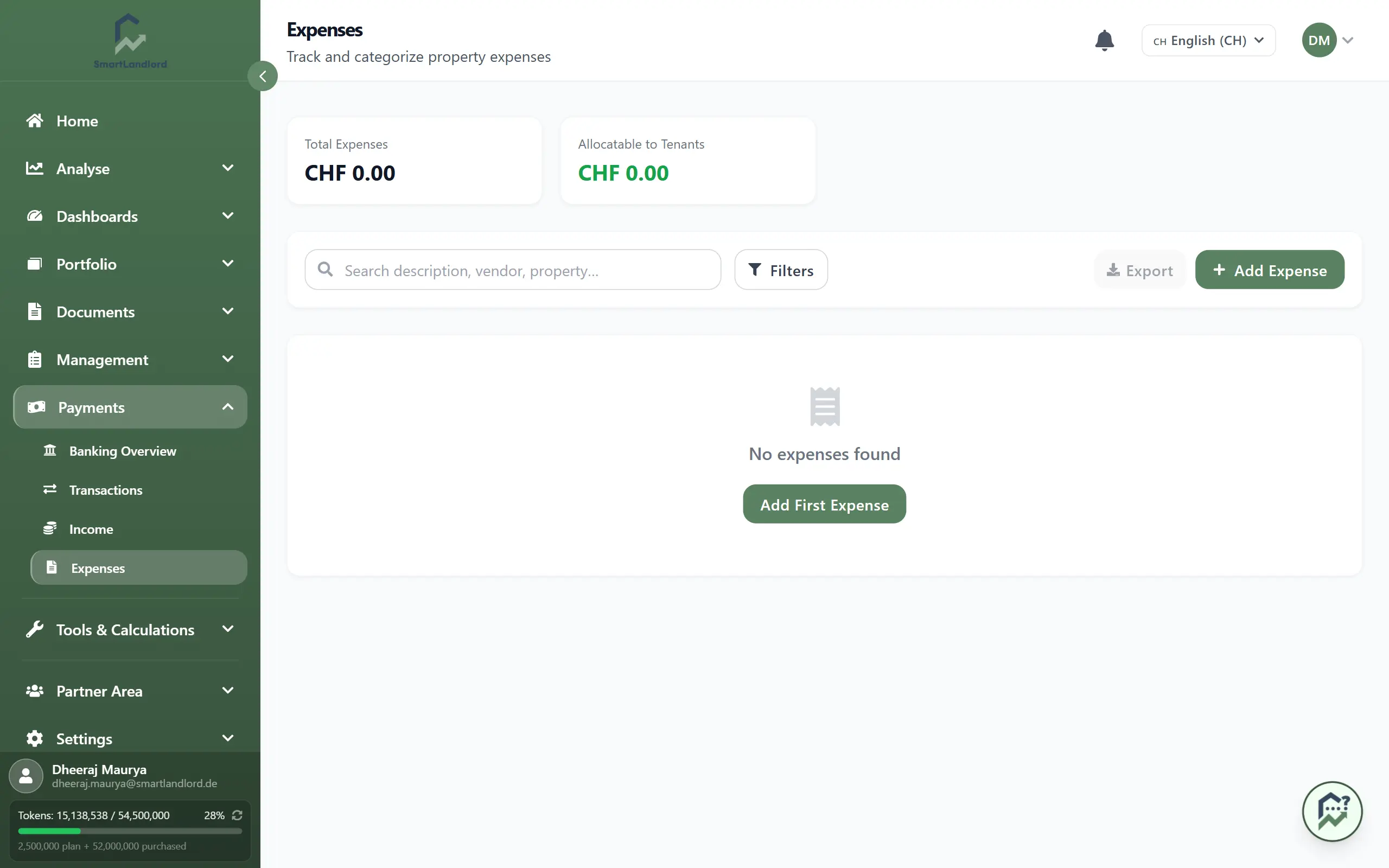
Key figures and list
At the top are Spese totali, Assegnabile agli inquilini and the two categories with the highest totals. The list shows date, description with vendor, category, property, whether the expense is allocatable (tick or cross) and the amount. Below the table are the total and the page selector.
Narrowing down:
- The search box searches description, vendor and property.
- Filtri opens two filters: Assegnabile agli inquilini (Tutti, Allocabile, Non allocabile) and Categoria.
The icons at the end of a row edit or delete an expense. Deleting asks for confirmation and cannot be undone.
Recording an expense
- Click Aggiungi spese. A side panel opens with the tabs Entrata and Spesa; the expense tab is active.
- Optional: under Ricevuta / Documento upload an invoice or receipt (PDF, JPG, PNG or WebP). SmartLandlord reads it and pre-fills the fields. Check the values before saving. If reading fails, fill in the fields yourself or choose Rianalizza.
- Enter date and amount.
- Choose the Categoria. Categories are arranged in groups (e.g. operating costs, energy, maintenance, insurance, taxes, financing, administration, legal, letting, other); the search field finds them faster.
- Enter the Descrizione.
- Optional: Fornitore, IBAN, Proprietà and notes. Without a property the expense applies to Tutte le proprietà.
- Switch on Includi nel rendiconto spese if the cost is to be passed on to tenants.
- Salva spesa.
Required fields are date, amount, category and description.
Allocatable or not
The switch decides whether an expense goes into the operating cost statement. When adding, it starts off; only reading a receipt can set it. When editing, it is set as soon as you change the category: categories from the groups operating costs and energy default to allocatable, all others do not. You can change the switch yourself at any time afterwards.
Check the switch on every expense yourself. When adding, it is not pre-set from the category (only a scanned receipt can set it), and a wrong setting affects the operating cost statement.
Exporting
The two toolbar buttons export the expenses with the filters currently set:
- Esportazione: a CSV file that opens in Excel (date, description, vendor, category, category code, property, allocatable, amount).
- Rapporto PDF: a PDF report.
Both are only active when the list has entries.
Expenses are also created when you assign a bank transaction as an expense, as described in the guide on transactions.