Manage your subscription
In the tab Abbonamento under Impostazioni → Impostazioni utente you see your plan and usage and get to upgrades, payment methods, transaction history and cancellation. Packages and current prices are on the pricing page; there are Free, Starter, Pro and Enterprise, billed monthly or yearly.
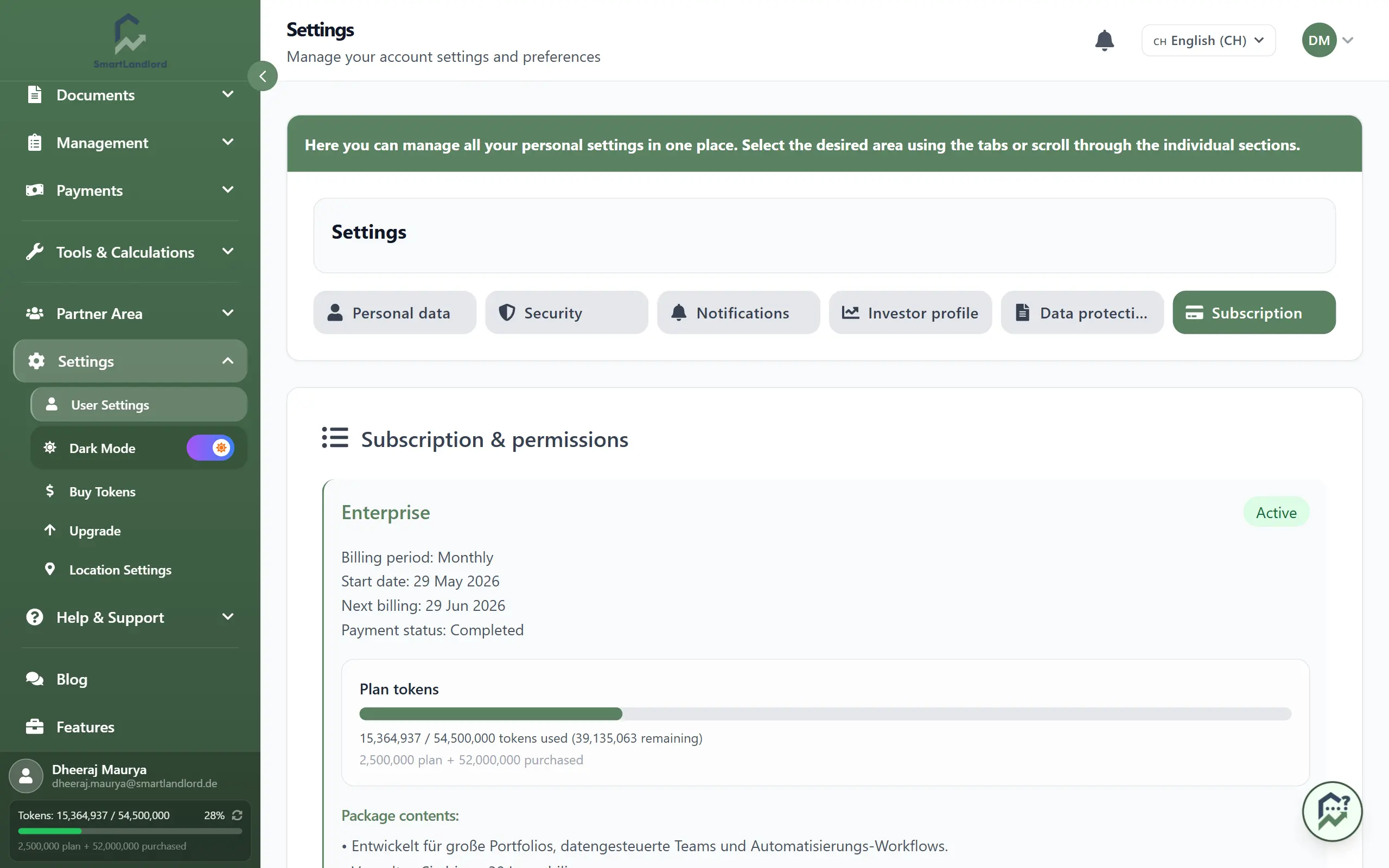
What the tab shows
- Plan name with status (active until …, expired or payment overdue), Periodo di fatturazione, start date, Prossima fatturazione (the end of the term if the subscription is cancelled), Stato del pagamento and account type.
- Token del piano: a bar with the tokens used against your total allowance; if you bought extra tokens, the split into plan tokens and purchased tokens is shown below it.
- Contenuto del pacchetto: what your package includes.
- Immobili rimanenti and PDF rimanenti, plus (Fino al) the date on which usage is reset.
Change plan or add properties
Both Aggiorna piano in the sidebar and the button Proprietà aggiuntive in the tab open the page "Piano di aggiornamento".
- At the top choose Mensile or Annualmente.
- On the card of the package you want, click Scegli piano. Your current package is marked Piano attuale; instead of the choose button it shows Gestisci piano (opens the same window, for example to change the number of properties). The free package needs no card.
- In the window, use the plus/minus buttons to add extra properties if needed (in blocks of ten, the price per block is shown next to it) and optionally enter a Codice coupon (opzionale), for example a partner's code. The coupon code only applies when you start a new paid subscription via Stripe, so the field is not shown if you already have a paid subscription.
- If you already have a paid subscription, the window shows what is charged today pro rata (Addebitato oggi (proporzionale)). When you switch to less, the change applies right away; you pay the lower price from your next invoice.
- The Ordina ora button (it also shows the price and billing period) takes you to payment at Stripe. If you already have a paid subscription, it is changed directly instead, without asking for your card again, and you return to the subscription tab.
Partner accounts include all Enterprise features and need no subscription; the page points this out at the top.
Buy more tokens
In the sidebar under Impostazioni click Acquista token. In the window enter the amount in millions of tokens (there is a minimum order), see the price per million and the total, and start the purchase with Acquistare token. Purchased tokens show in the tab in the split below the usage bar.
If buying tokens is not possible on your plan (for example the free one), the window shows an overview of packages to upgrade to instead.
Payment methods
Metodi di pagamento opens the list of your stored methods. There you make one the default with Imposta come predefinito, delete it with Rimuovi or add a new one with Aggiungi nuovo metodo di pagamento. Payment data is processed by Stripe.
Invoices
Cronologia transazioni lists subscription payments and token purchases. Filter by type and status and download the invoice with the button Fattura in the row.
Cancel and reactivate
- Click Annullamento dell'abbonamento in the tab and confirm in the window.
- The subscription stays active until the end of the paid term; no further charges follow.
- Until then the same place shows Riattiva abbonamento, which takes the cancellation back.