Create documents
Under Documenti → Crea you generate PDF documents from the data you already have in SmartLandlord: portfolio report, property detail report, a tax form (depending on your country) and a rental contract. First you pick the properties, then the document type.
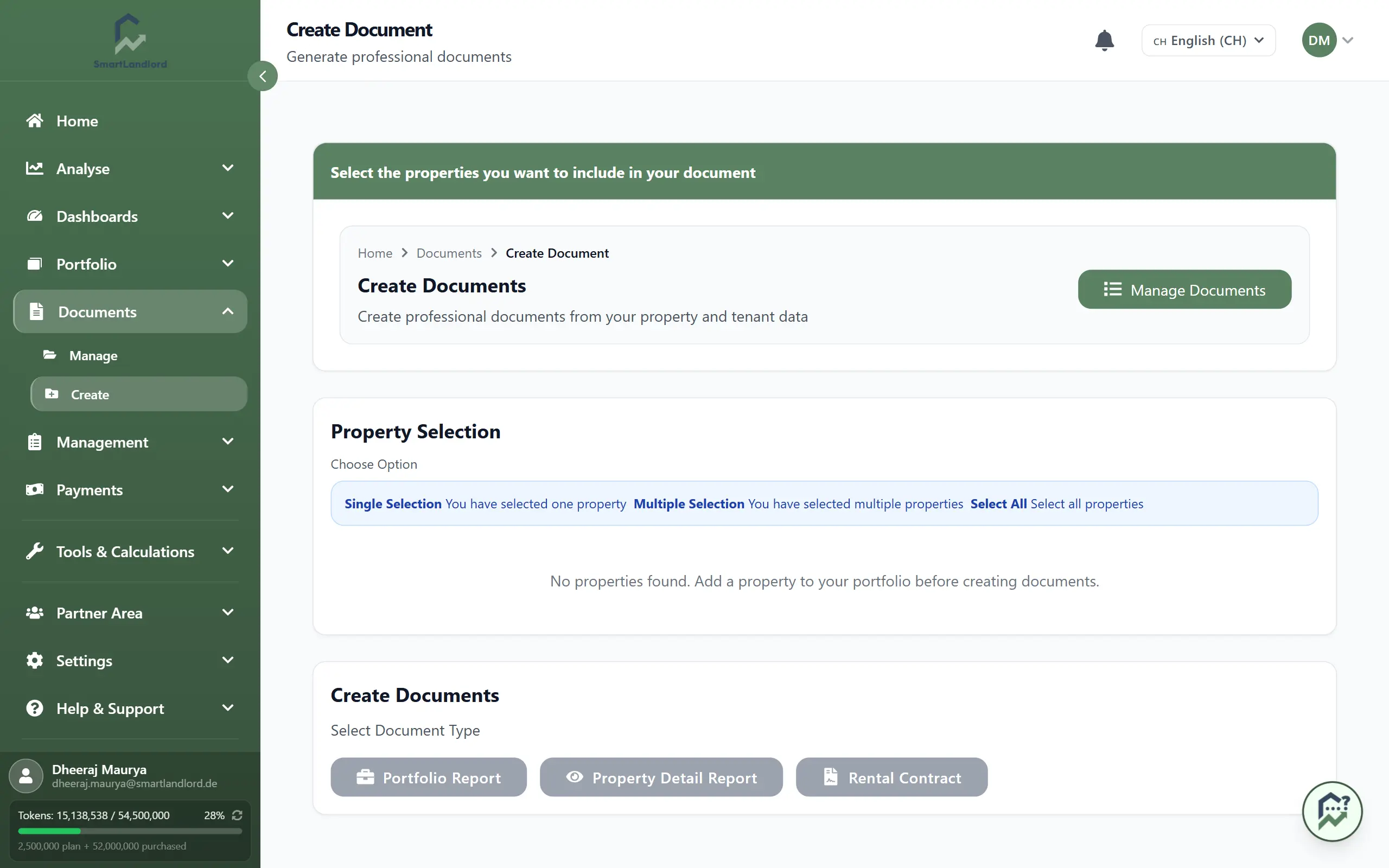
1. Select properties
In the Selezione della proprietà area every property is a card showing purchase price, cold rent and interest rate. Click one or more cards. The Seleziona tutti card picks all of them at once. From six properties on, a filter field (Filtra proprietà) appears.
If a property is missing, add it with Aggiungi proprietà (top right of the area). If you have none yet, the area stays empty and the page tells you so.
2. Choose the document type
Under Creare documenti the document types are buttons. Which ones appear depends on the country of your account.
| Document type | Properties | Result |
|---|---|---|
| Rapporto sul portafoglio | one or more | PDF report on the selection |
| Rapporto dettagliato sulla proprietà | exactly one | PDF report on one property |
| Anlage V | one or more | tax form (only if offered for your country) |
| Beilage L | one or more | tax form (only if offered for your country) |
| Contratto di locazione | one, can be chosen in the studio | opens the contract studio |
3. Create a report or tax form
Clicking the document type opens a window with the settings. The Generare PDF button is only active once everything required is filled in. The PDF is generated and downloads automatically.
Rapporto sul portafoglio: at least one property must be selected and Il tuo nome filled in. Under Includere le sezioni you switch on or off: Sintesi, Panoramica della proprietà, Panoramica del finanziamento, Metriche finanziarie, Grafici e diagrammi and Appendice. For the appendix you can enter your own text (Testo dell'appendice).
Rapporto dettagliato sulla proprietà: exactly one property must be selected, plus Il tuo nome. Under Capitoli da includere choose Dati sulla proprietà, Dati finanziari and Analisi degli affitti.
Anlage V and Beilage L: choose the properties and the Anno fiscale (previous year or current year). There are no further settings.
4. Rental contract in the contract studio
The Contratto di locazione button opens a page of its own, the contract studio. You fill in the form on the left; the preview of the contract is on the right (Anteprima · aggiornata in tempo reale). If you selected exactly one property beforehand, it is already filled in. If several are selected, the page notes that a contract covers one property only.
- Optional: describe the contract in one sentence under Magic Fill and click Compila, or upload a PDF or text file with Carica contratto/annuncio. The fields are prefilled; check them.
- Choose the Immobile and the Inquilino from the list, or create them (Aggiungi immobile, Aggiungi inquilino). This opens a short multi-step assistant: for a property address, data and rent; for a tenant contact details, address and optional bank details.
- Under Condizioni del contratto enter Inizio del contratto, Affitto base, Spese and the deposit. Whether the lease end is required depends on the chosen template: it is required for fixed-term templates, and the field is locked for templates that do not allow an end date.
- The Modello is chosen automatically by property type; you can pick another one if several are offered.
- Under Dati aggiuntivi you can optionally enter keys, cellar room, furniture surcharge and graduated rent. Empty entries stay in the contract as a line to fill in by hand.
- Adjust the text in the preview: per clause you can use Modifica or Perfeziona con l'IA. In the Assistente IA field you describe changes in words.
- Below the form the page lists what is still missing (for example the tenant address). Once everything is there, click Crea contratto.
Creating also sets up the tenancy for the tenant. Only Attiva makes the contract binding and no longer editable. Check it first.
After creating
A message Contratto creato appears at the top of the page with these actions:
- Attiva: activates the contract after a confirmation prompt.
- Scaricare PDF: appears as soon as the PDF is ready; until then it says "Generazione PDF…". The preview then shows the finished document.
- Invia al locatario: opens a draft to the tenant in your email program with the link to the PDF; you send it yourself. The button only appears once the PDF is ready and the tenant has an email address stored.
- Apri inquilino: opens the tenant.
The Crea documento button next to them starts a new contract.